
Your Android tablet becomes a display for the Mac and the PC.
Plug the tablet into the Mac and the Mac's desktop carries on onto it: one more screen to drag windows to, keep a reference open or follow a conversation. No developer options, no extra app and nothing more to pay — it is a feature of the Airdroidfy you already have. It works over Wi-Fi too.
On Windows, over Wi-Fi, the tablet mirrors the PC's main screen or shows another of its displays, and touch stands in for the mouse there too. How it works on Windows.
An Apple Silicon Mac on macOS 14 or newer, with Airdroidfy 0.2.0, or a PC on Windows 11 (x64 or ARM64), with Airdroidfy 1.1.0; on the tablet or phone, Android 14 or newer with Airdroidfy 1.1.0. All the requirements.
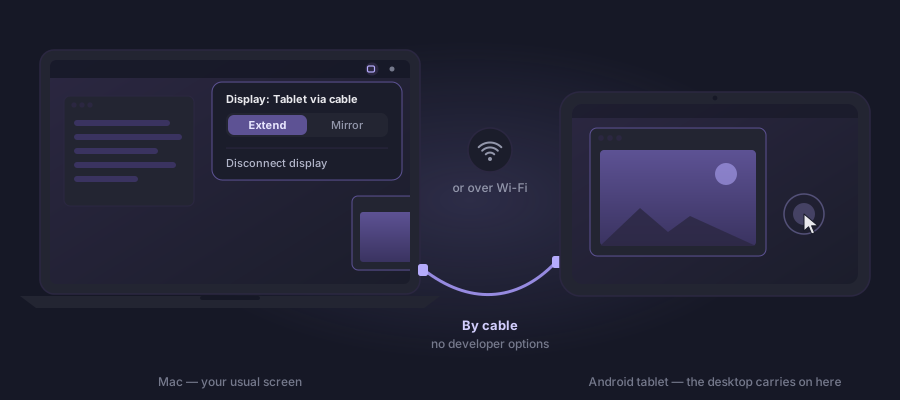
Extend or mirror
- Extend is the default: the tablet becomes one more piece of the desktop, to the right or left of the Mac, at the panel's own resolution and 60 frames per second. Windows go back and forth by dragging, as with a desk monitor.
- Mirror shows the Mac's main screen on the tablet — handy for showing something to whoever is across the table.
- You switch from the Airdroidfy menu, in the menu bar, while the display is on. The position (tablet on the left or on the right) is remembered per tablet, and the rest of the arrangement is the usual one, in System Settings › Displays.
By cable, with nothing to set up
The cable is the simplest and steadiest way. The Mac talks to the tablet as a USB accessory — the same mechanism Android offers for docks and car head units — so there is no need to turn on developer options, USB debugging, or to install anything other than Airdroidfy on both sides. The connection that runs over the cable is the same encrypted, authenticated one the two already use over Wi-Fi.
The two need to be paired once, as for anything else in Airdroidfy. If they are not yet, the tablet says so as soon as the cable goes in, and the QR pairing can be done right there, over the cable.
The first time
- With Airdroidfy open on the Mac, plug the tablet straight into the Mac with a data cable.
- The Mac asks Use this tablet as a display? Choose Always on this tablet so that next time plugging in is enough — or Just this time, and it asks again next time.
- On a MacBook, macOS asks whether the accessory may connect. Click Allow. It may ask twice; that is normal.
- On the tablet, Android asks whether to open Airdroidfy. Tick Always open and tap OK.
- The first time, the Mac opens the Set up the display window, with the two macOS permissions. Just once.
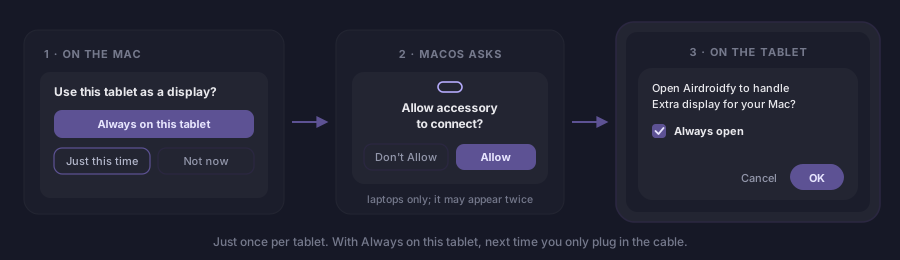
The display appears to the right of the Mac. The first time, macOS sometimes opens a prompt inside the new screen — answer it on the tablet itself, with your finger.
From then on
With Always on this tablet, you just plug in the cable: the Mac switches the tablet into display mode, Airdroidfy opens on its own on the tablet and the picture appears. That permission covers only that tablet, paired with that Mac: any other device plugged in gets the question, and is never taken over as a display without your click.
Over Wi-Fi
With no cable to hand, the display works over the network, with the same pairing and the same TLS 1.3 channel as the files. Both need to be on the same Wi-Fi; a 5 GHz network helps a lot.
- From the tablet: in the Airdroidfy app, with the Mac connected, tap Use as Mac display.
- From the Mac: in the Airdroidfy menu, choose Use tablet as a display. The tablet opens the display (or shows a notification, if the app is in the background).
Over Wi-Fi, when the request comes from the tablet, the Mac asks every time, with Decline as the default answer. There is no "always allow" over the network: only the cable, which needs the tablet physically plugged into the Mac, can skip the question. There is no question when the invitation comes from the Mac itself (Use tablet as a display), nor when the same tablet comes back shortly after a pause (up to 60 s) or a dropped connection (up to 20 s).
Touch becomes a mouse
On the tablet's screen, your finger stands in for the Mac's mouse:
- Tap to click; tap and drag to drag.
- A long press or a two-finger tap is a right-click.
- Dragging with two fingers scrolls, with a trackpad's momentum.
- With a pen like the S Pen, hovering over the screen moves the pointer, and touching down clicks.
For this the Mac needs the Accessibility permission. Without it, the picture shows up as usual and touch stays off — the tablet tells you. The tablet's keyboard and pinch to zoom are not in yet.
The Mac's permissions
Airdroidfy asks for none of this when it opens. The Set up the display window appears the first time you use the feature, shows what is missing and closes on its own when everything turns green. The same list lives in the app's Settings.
- Screen Recording — it is how the Mac draws the picture that goes to the tablet. Without it, nothing appears. If macOS asks to reopen Airdroidfy after you grant it, accept: the tablet waits up to 60 s and comes back on its own once the app is open again (over the cable without "Always on this tablet", confirm in the Mac's prompt).
- Accessibility — it is what lets a touch on the tablet move the pointer and click.
- USB accessory — by cable and on laptops only: it is macOS's own prompt asking whether the accessory may connect.
How to stop
- On the Mac, Disconnect display, in the Airdroidfy menu.
- On the tablet, the back gesture, then Disconnect.
- Pulling the cable, going to the home screen or turning the tablet's screen off also end it. In those cases the Mac waits a little before removing the display — 20 seconds after a drop, 60 after a pause — and if you come back in time, the windows stay where they were. After that, they return to the Mac's screen.
On Windows, over Wi-Fi New
From Airdroidfy 1.1.0 for Windows, the tablet becomes a display for the PC too, over Wi-Fi, with the same pairing and the same encrypted channel as the files. It can show two things:
- The PC's main screen (mirror): it works on any PC, with nothing else to install. If the tablet's shape differs from the PC's, the picture shows up with bars.
- Another of the PC's displays: the tablet shows a display Windows already has besides the main one. That is how you extend the desktop on Windows in this version, with a second monitor or with an HDMI dummy plug.
The display asks for no administrator password and no new Windows permission, neither when installing nor when using it.
How to start and stop
- From the tablet: in the Airdroidfy app, with the PC connected, tap Use as PC display. The PC asks every time, with Decline as the default answer; click Allow.
- From the PC: in the Airdroidfy menu, in the system tray, choose Use tablet as a display. When the invitation comes from the PC itself, there is no question.
- To stop: Disconnect display, in the same menu, or, on the tablet, the back gesture and then Disconnect.
Extending the desktop: the HDMI dummy plug
On the Mac, Airdroidfy creates a new display for the tablet. On Windows, creating a display means installing a driver, and Airdroidfy 1.1.0 installs no driver at all. The way round it is to give Windows a real display for the tablet to show.
An HDMI dummy plug — also sold as a "display emulator", "headless HDMI" or "ghost display" adapter — is a small, cheap plug that, once in one of the PC's video outputs, makes Windows see a monitor there. It needs no driver.
- Plug the adapter into a free video output on the PC (HDMI, DisplayPort or USB-C with video, depending on the adapter). On a desktop PC with a graphics card, use an output on the same card as your monitors.
- In Settings › System › Display, check that it is set to Extend these displays and drag the new display to the side where the tablet will sit. If the adapter offers a resolution with the tablet's shape (1920 × 1200 on a 16:10 tablet, for example), pick that one; otherwise the picture shows up with bars.
- In the Airdroidfy menu, in the tray, choose that display for the tablet. Whatever is on it shows up on the tablet, and windows go back and forth by dragging, as with a desk monitor.
A second monitor you already have works the same way: the tablet shows whatever is on it.
With no other display on the PC, an extend request from the tablet becomes a mirror of the main screen, without dropping anything: the picture arrives, and Airdroidfy on the PC explains how to extend with the adapter.
Touch on Windows
The gestures are the Mac's: tap to click, a long press or two-finger tap is a right-click, dragging with two fingers scrolls, and a hovering pen moves the pointer. Touch takes the pointer to the matching spot on the display the tablet is showing.
Windows does not let an ordinary program touch windows opened as administrator, nor the User Account Control prompt: there, use the PC's mouse. With the PC locked, or with that prompt on screen, the picture on the tablet stops until you answer on the PC itself.
Requirements
| Where | What it needs |
|---|---|
| Mac | Apple Silicon (M1 or newer), on macOS 14 Sonoma or newer, and Airdroidfy 0.2.0 or newer, licensed or in the three-day trial. |
| PC | Windows 11 (build 22000 or newer), x64 or ARM64, not in S mode, with Airdroidfy 1.1.0 or newer, licensed or in the three-day trial. In the session of whoever is at the PC: it does not work over Remote Desktop. |
| Android | A tablet or phone on Android 14 or newer with Airdroidfy 1.1.0 or newer, from Google Play. On a phone the picture is smaller, but it works. |
| Cable | Mac only: a USB data cable, plugged straight into the Mac. A charge-only cable will not do. |
| Another display | Only to extend on Windows, and optional: a second monitor or an HDMI dummy plug in one of the PC's video outputs. |
| Wi-Fi | Both on the same private network. 5 GHz recommended. |
What it does not do yet
- It doesn't work on an Intel Mac.
- On Windows, it doesn't work by cable yet: Wi-Fi only. And Windows doesn't get a display created by Airdroidfy: to extend, you need another display on the PC.
- It doesn't use an iPad or iPhone as a display.
- One tablet at a time.
- No sound on the tablet, no HDR and no 90 or 120 Hz. On the Mac, the picture runs at 60 frames per second.
- No tablet keyboard and no pinch to zoom.
- The display is always landscape. With the tablet upright, the picture shows up smaller, with bars around it.
Questions
Do I need to turn on developer options on the tablet?
No. By cable, the Mac presents itself to Android as a USB accessory, which is an ordinary system feature, with no developer options and no USB debugging. The tablet keeps charging as usual.
Does it cost extra?
No. Screen is part of Airdroidfy and is included in the same licence — and in the three-day trial. The Android app stays free.
Does it work on Windows, on any Mac or with an iPad?
On Windows, yes, from Airdroidfy 1.1.0 for Windows: over Wi-Fi, the tablet mirrors the PC's main screen or shows another of its displays (see On Windows). By cable, for now, only on the Mac. It doesn't work on an Intel Mac: Airdroidfy for Mac is built for Apple Silicon. On the tablet side, Android only.
Why doesn't Windows create the display on its own, like the Mac?
Because on Windows a new display only exists through a driver, and a display driver only installs on an ordinary Windows 11 with a signature Airdroidfy does not have. This version installs no driver at all — which is also why it asks for no administrator password. To extend, use a second monitor or an HDMI dummy plug: to Windows, it is a real monitor.
I unplugged the tablet and the windows stayed on the adapter's display.
To Windows the adapter is still a monitor, even with nothing showing what is on it. To bring a window back, click it in the taskbar and press Windows + Shift + left arrow (or right) until it reaches the main screen. Or pull the adapter out of the video output: Windows brings everything back on its own. To leave the adapter plugged in without using it, Windows + P › PC screen only.
Windows won't let me open Airdroidfy.
Airdroidfy for Windows is not digitally signed. SmartScreen warns and lets you open it; Smart App Control, when it is on, blocks it with no such way out. What to do in each case is on the Download page.
Touch doesn't work on a Windows window.
If the window was opened as administrator, or if it is the User Account Control prompt, Windows does not let Airdroidfy click on it. Use the PC's mouse there. Everything else keeps answering to touch.
Does it work over Remote Desktop?
No. The display shows the session of whoever is sitting at the PC; a session opened over Remote Desktop does not reach the tablet.
What about Windows 11 in S mode?
It doesn't install: in S mode Windows only accepts apps from the Microsoft Store, and Airdroidfy is downloaded from this site. Switching out of S mode is free, but it is one-way; the choice is yours.
Can I use it by cable on Windows?
Not yet. On Windows, for now, the display works over Wi-Fi only, and Airdroidfy on the PC leaves a tablet on the cable alone.
The tablet says the cable only charges.
Some cables, especially the ones that come with cheap chargers, lack the data wires. The tablet notices and says This cable only charges. Swap it for a data cable — the one that came with the tablet usually works — and plug straight into the Mac.
Can I plug in through a hub or adapter?
It may work, but it is not guaranteed: some hubs get in the way of accessory mode. If the display does not open through a hub, plug straight into a port on the Mac before anything else.
What about a locked tablet?
The Mac's screen never shows on a locked tablet. If you plug the cable in while it is locked, the Mac asks you to unlock it and waits; once unlocked, the picture appears (or use Try again in the Airdroidfy menu). Some devices with extra protection may block USB data while the screen is locked — unlocking sorts it. Android also keeps no thumbnail of the Mac's screen in the recent apps list.
The Mac asked twice whether the accessory may connect.
It can happen, and it is normal. On Apple Silicon MacBooks, macOS asks before letting a new USB accessory connect, and the tablet may show up to it twice: once as an ordinary device and once already in display mode. Click Allow both times. Desktop Macs don't usually ask.
I clicked Don't Allow by mistake.
Unplug the cable and plug it in again: macOS asks again. If it doesn't, open System Settings › Privacy & Security and, in the option for when accessories are allowed to connect, pick one of the ones that ask. On the next plug-in it asks, and then it is Allow.
macOS asked for Screen Recording again.
From macOS 15 onwards, the system asks again from time to time — currently about once a month — whether apps that record the screen may carry on, and Airdroidfy falls under that rule, like any app that shows the Mac's screen somewhere else. Choose Allow. While the prompt is open, the tablet shows A permission is missing on the Mac, and the picture comes back as soon as you answer. It is not a fault nor a lost permission: it is macOS checking, every so often, that you still want it.
A macOS prompt showed up on the tablet.
The first time a new display appears, macOS may open a prompt inside it. Since touch works as a mouse, answer it right there, on the tablet. If touch is off, move the Mac's pointer over to it.
The tablet asks every time whether to open Airdroidfy.
That is Android's Always open box, left unticked. Next time it asks, tick the box before tapping OK. If you tapped Cancel, the Mac waits a little and offers Try again in the menu.
Does the picture go through any server?
No. The display's picture and the touches go straight from one device to the other — over the cable or your own network — encrypted with the certificate the two exchanged when pairing. There is no server of ours they could pass through. The details are in the privacy policy.
Another question? Write to support@airdroidfy.com.